

Import orders from CSV or Excel
Use Import orders to send many orders at once. One row in your file is one order. We check every row on your computer first, so you can fix problems before you pay.
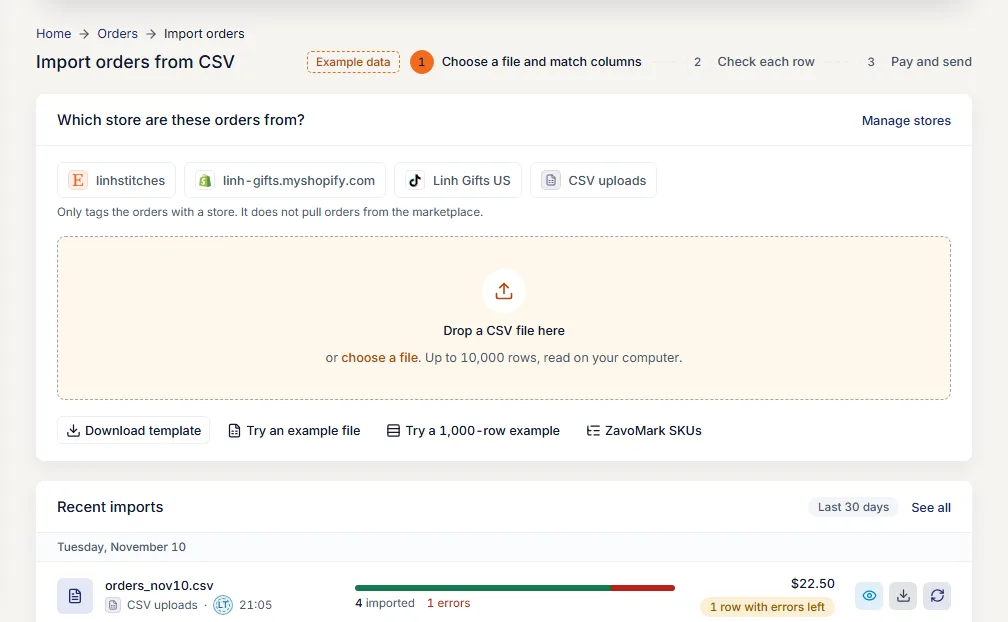
The page shows three steps at the top: Choose a file and match columns, Check each row and Pay and send.
- Open Orders > Import orders.
- If you have stores, pick one under Which store are these orders from? It only tags the orders. It does not pull orders from the marketplace.
- Drop your file in the box, or choose choose a file. CSV and Excel (.xlsx) files work, up to 5 MB and 10,000 rows.
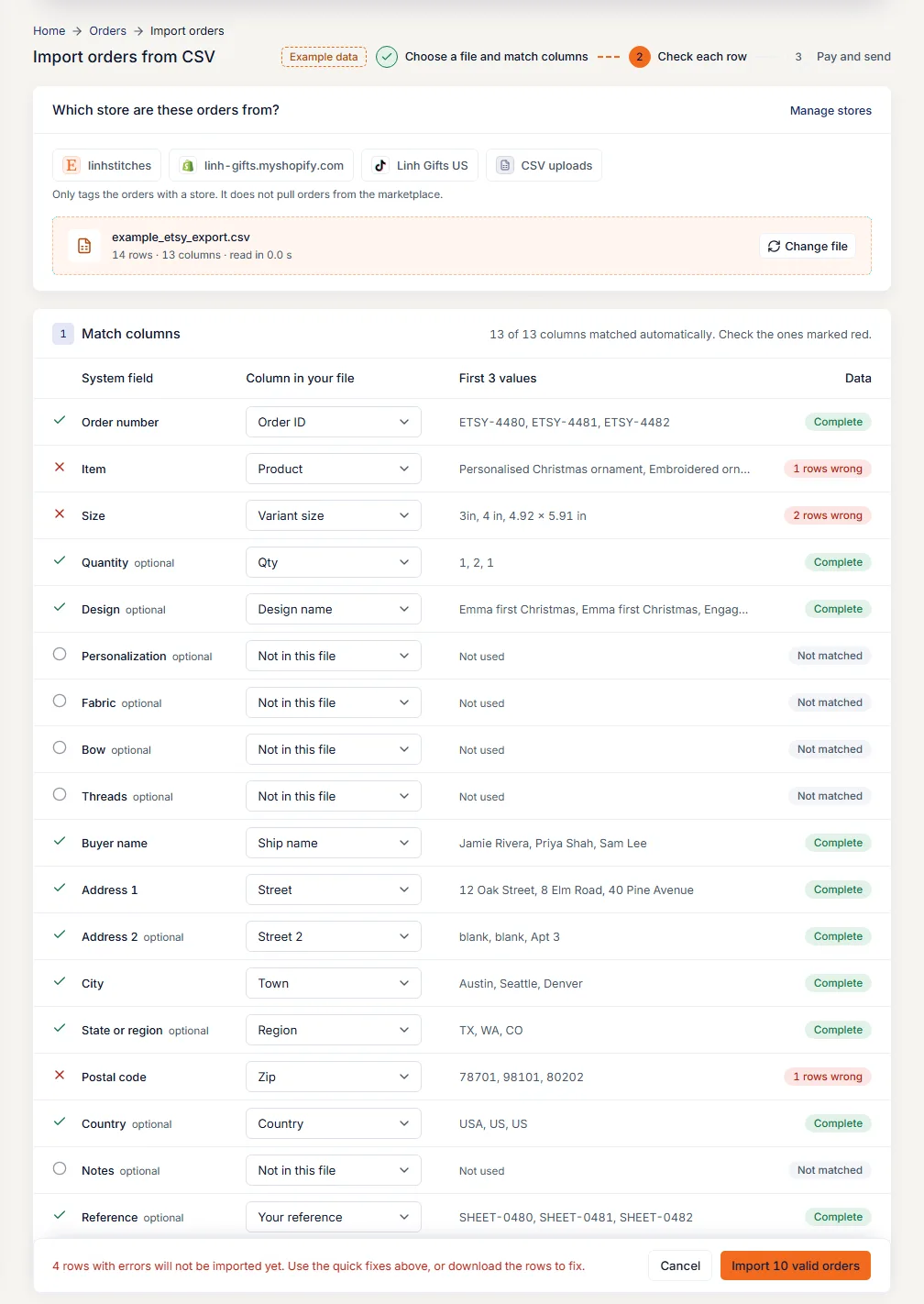
- Under Match columns, check what we matched. The table shows each System field, the Column in your file, the First 3 values and the Data status (Complete, N rows wrong or Not matched). Change any column that looks wrong. Optional fields can stay Not in this file.
- Under Check each row, look at the tiles Rows in total, Valid, Errors, need a fix and Warnings.
- Fix the errors with Quick fixes by group. See Fix import errors.
- At the bottom, select Import N valid orders. If every row is ready, the button reads Continue with N orders.
- On Pay and send, review the production cost, the digitizing fees and the shipping estimate. Select Pay and send N orders.
What happens when you pay
Section titled “What happens when you pay”The total is held in your wallet. You see each order move through design check, stitching and shipping on the Orders page. If the wallet is short, the page shows how much more you need and a Top up button. See Wallet charges and refunds.
Only members with the Orders, Admin or Owner role can import. See Roles and permissions.
Good to know
Section titled “Good to know”- Rows that have errors, or that you leave out, are not sent. Select Download rows to fix to get them as a file, fix it, and add it back with Upload fixed file.
- Rows already sent are skipped if you upload the same file again, so nothing is stitched twice.
- Your past imports are under Recent imports, with a result for each file. Select See all for the full history.
Need a starting file? Choose Download template, Try an example file or Try a 1,000-row example. See CSV and Excel file format.