

Find and filter orders
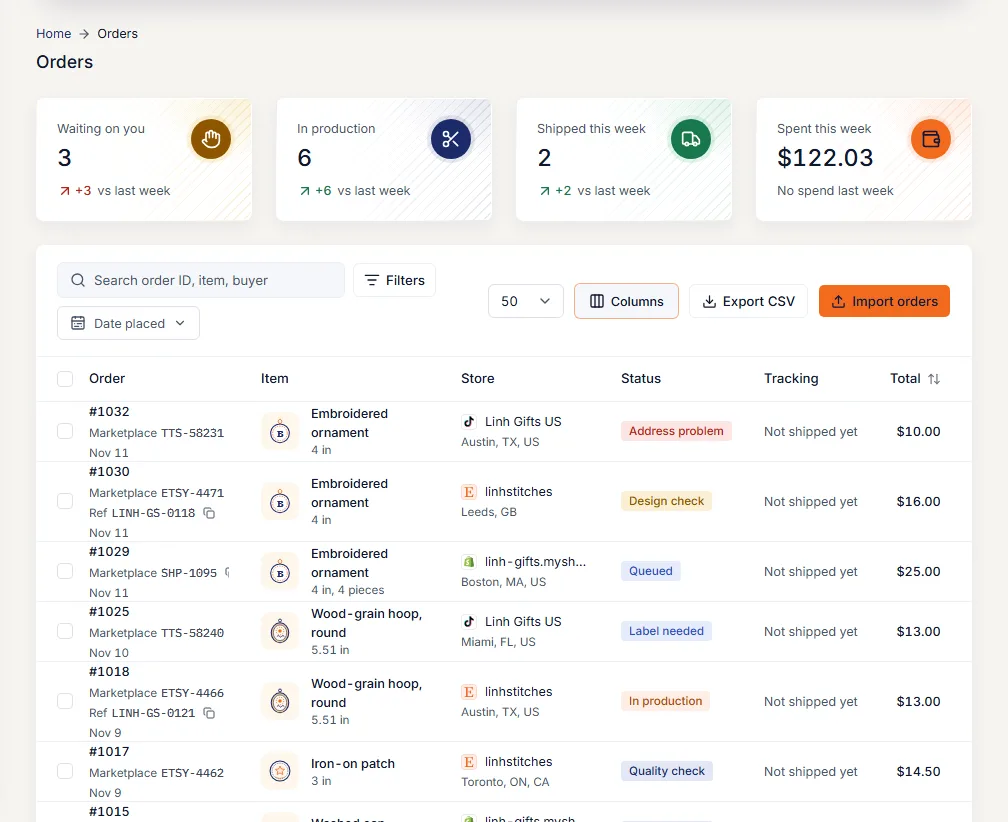
Open Orders to see every order from the stores you can access.
Search
Section titled “Search”Type in the search box. You can search by order ID, item, buyer or tracking number.
Filters
Section titled “Filters”Select Filters to narrow by Status, Store, Product, Date placed and Assignee. Use Clear filters to reset.
Statuses
Section titled “Statuses”| Status | Meaning |
|---|---|
| Waiting on you | The order needs something from you |
| Design check | A stitch preview is ready for your approval |
| Address issue | The address could not be verified |
| Label needed | A TikTok shipping label is needed |
| In production | Queued or on the machines |
| Quality check | Checked by hand, then packed |
| Shipped | On its way, with a tracking number |
| Cancelled | The order was cancelled |
Open an order
Section titled “Open an order”Select a row to open a side panel. Choose Open full page for the full order with the tracking card, items, payment and activity.
Do things in bulk
Section titled “Do things in bulk”Tick several rows to use Bulk actions. You can Approve selected designs and Assign to member. Assigning gives an order to a team member so the team knows who handles it.
Export
Section titled “Export”Select Export CSV to download the orders you see, with your filters applied. Choose which fields to see with Columns.
Cards at the top
Section titled “Cards at the top”The cards show orders Waiting on you, In production, Shipped this week and Spent this week.