

Add a design to your library
Embroidery needs a stitch file. We make it from your artwork. We call this digitizing. We digitize each design once, then reuse it on every order that needs it.
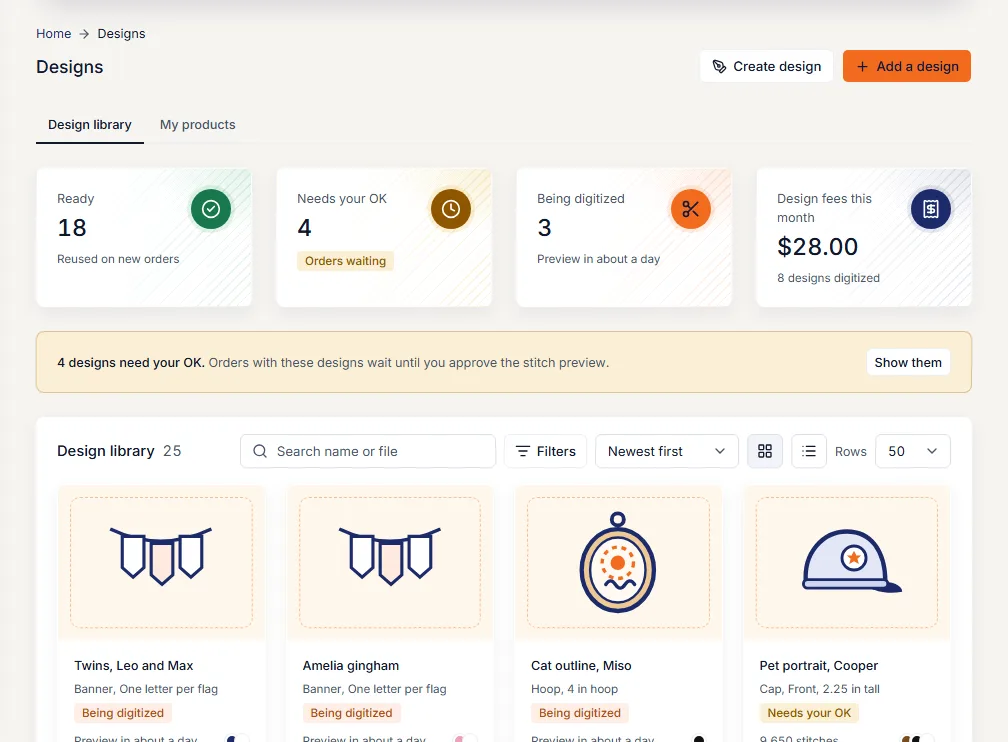
Add a design
Section titled “Add a design”- Open Designs > Design library.
- Select Add a design.
- Drop your file, or choose one. PNG, JPG, SVG or PDF, up to 20 MB. A clear image works best. Sketches and photos are fine, we redraw them for thread.
- Give the design a Name so you can find it later.
- Pick the Product and the Placement size.
- Add Notes for the digitizer if you need to. For example thread colors to keep, parts to leave out, or text that must stay readable.
- Check the one-time digitizing fee, then select Add design.
The fee is charged to your wallet when you add the design. Every order that reuses the design pays no design fee.
We send you a stitch preview within one working day. See Approve the stitch preview.
Designs added through an order
Section titled “Designs added through an order”You can also name a design in the Design column of an import file. If we do not know the design yet, the row shows No design yet, the order waits for it or New design, digitized first. If you supplied a mockup image, we digitize from it and charge the design fee.
Manage your library
Section titled “Manage your library”- Search by name or file name, and filter by status or product.
- Switch between grid and list view.
- Open a design to Rename, Duplicate for another product or Archive. Archived designs can be restored any time.
- The cards at the top show designs Ready, Needs your OK and Being digitized.
- Use a large, sharp image. Tiny text and very thin lines do not stitch well.
- One design per product and size works best. Use Duplicate for another product to reuse artwork.